2023-01-27 QvPen2Pen retrospective
このページは日本語でご覧いただけます: 日本語
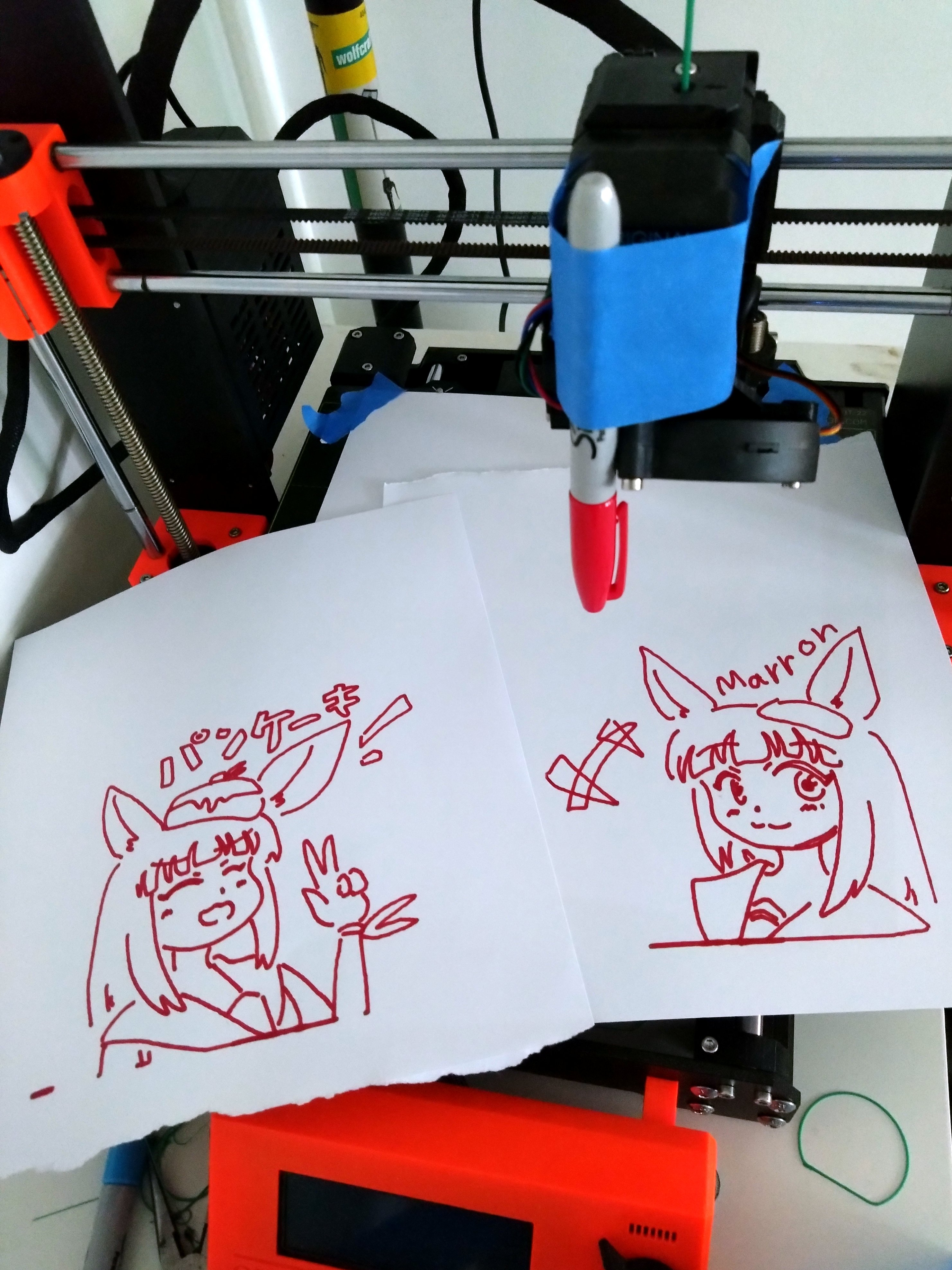
I’ve made it possible for friends to draw using my 3D printer from within VR.
How it started
I’ve been using my 3D printer for a couple months now, and I’ve started to wonder if I could somehow connect it to a VRChat world so that friends could control my 3D printer with a pen attached to it.
However, so far, I’ve only been printing using a SD card where I put gcode files output from slicing software, and then plug it directly to the printer.
For maximum effect, I wanted the drawing to materialize live with the lowest latency possible.
I’ve asked on Twitter with my basic pitch:
https://twitter.com/vr_hai/status/1618541782899519489
Soon I was told that it’s possible with serial port communication using the USB-B port on my Prusa MK3S+ printer. Thankfully my 3D printer is very close to my main rig, so I immediately plugged it to try.
Prior art
After making this tweet asking for advice on how to send gcode in real time, I’ve been shown examples of prior art, which is cool! This one uses a plotter.
getting an autograph from a vtuber!?? 😱
VShojo #ENVtuber Vshojo:Twitter ⯈ https://twitter.com/VShojoOfficialInstagram ⯈ https://www.instagram.com/vshojo/Website ⯈ https://www.vshojo.com/VShojo tal...
The plan
To make lines drawn by the pen (by myself or by other players) materialize onto the printer, the plan is to modify QvPen (which is the pen prefab) to output the pen line positions in the game logs using Udon, then write a log parser that will continuously transmit the pen positions as gcode instructions for the printer through the serial port.
Debug.Log the pen position/click/release → Log parser → Remap to gcode → Serial port
This needs to be done with the lowest possible latency for greater effect, as the printer will be live streamed back into the world.
Learning serial port communication and gcode
After a quick google search, I’ve looked at my Device Manager to get the communication port of my 3D printer (the COM ports).
Then I searched up for references on what’s the serial port configuration for my printer (baud rate, etc.), which led to some OctoPrint logs that referenced it.
_port = new SerialPort(portName, 115200, Parity.None, 8, StopBits.One);
_port.Open();
Then I looked up for basic gcode functions: Moving the print head in the X and Y axis (which are the axes for the print bed), and the Z axis (up and down), and how to control the movement speed. The main gcode is G1.
private const int InternalFastestMillimetersPerSecond = 200;
private const int FastestMillimetersPerMinute = InternalFastestMillimetersPerSecond * 60;

// Editor's note: SafeWriteLine and other functions are described in the next section

public void AsFastAsPossible()
{
    SafeWriteLine($"G1 F{FastestMillimetersPerMinute}");
}

public void MoveTo(float xMillimeters, float yMillimeters)
{
    if (IsFloatIllegalRange(xMillimeters) || IsFloatIllegalRange(yMillimeters))
    {
        throw new ArgumentOutOfRangeException($"{xMillimeters} {yMillimeters}");
    }
    SafeWriteLine($"G1 X{xMillimeters:0.000} Y{yMillimeters:0.000}");
}

public void PressPen(float amount01)
{
    if (amount01 < 0 || amount01 > 1)
    {
        throw new ArgumentOutOfRangeException();
    }

    if (amount01 < 0.001f)
    {
        MoveZToAndIgnoreLess(Retracted);
    }
    else
    {
        MoveZToAndIgnoreLess(FullyPressed * amount01 + BarelyPressed * (1 - amount01));
    }
}

public void ReleasePen()
{
    MoveZToAndIgnoreLess(Retracted);
}

public void MoveZToAndIgnoreLess(float zMillimeters)
{
    if (IsFloatIllegalRange(zMillimeters))
    {
        throw new ArgumentOutOfRangeException();
    }

    if (zMillimeters < 9f)
    {
        return;
    }
    SafeWriteLine($"G1 Z{zMillimeters:0.000}");
}

// Editor's note: SafeWriteLine and other functions are described in the next section
Mistakes
In the learning process I’ve done a few mistakes that caused the printer to physically malfunction. The malfunctions manifested in the following ways:
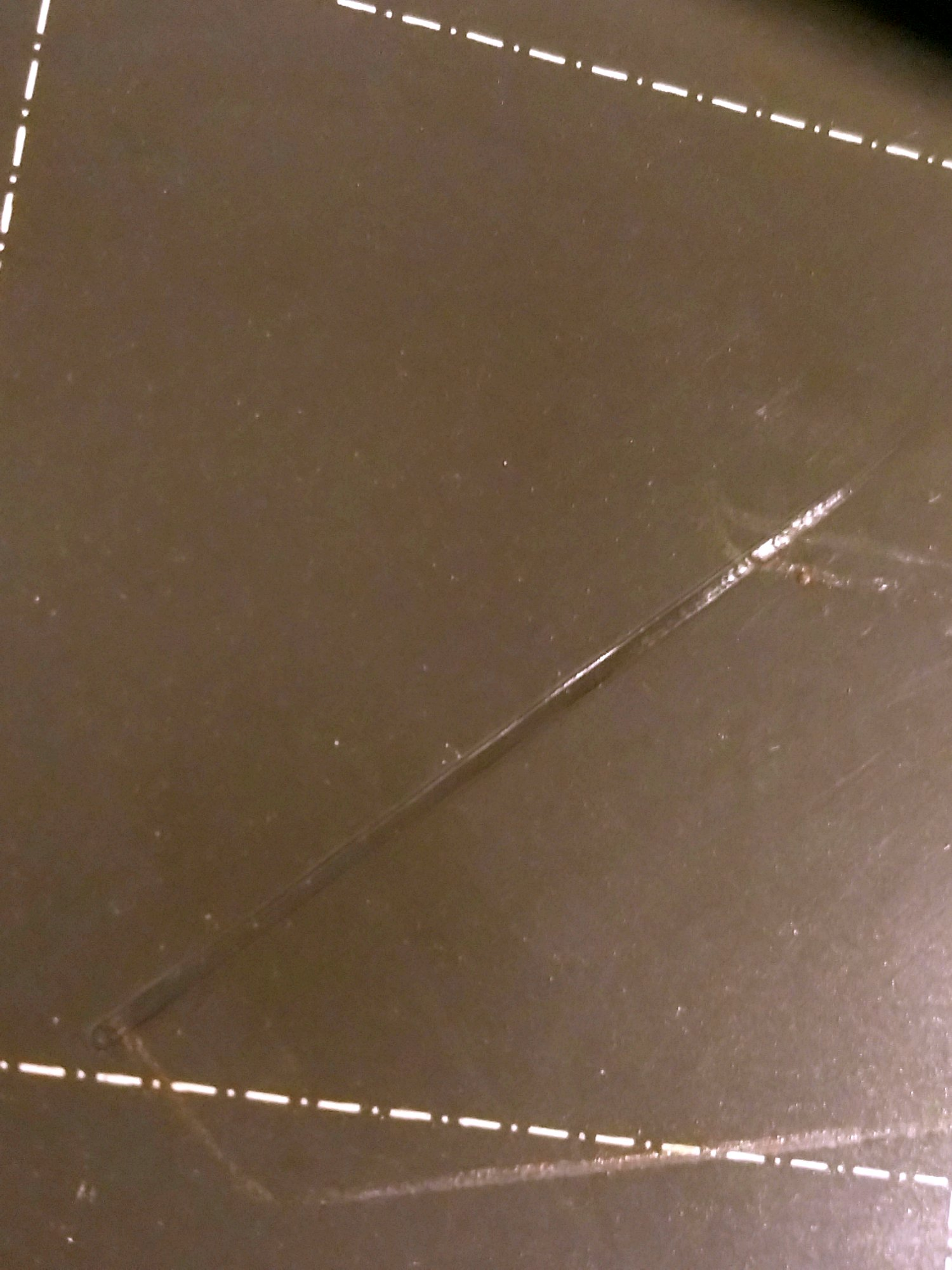
- The Z axis (print head moving down) crashed the nozzle into the bed, while the bed was moving, causing physical damage to the print bed. I tried a test print after recalibration afterwards, and it seems to work fine, but maybe there’s some additional damage that I don’t know of yet.
https://twitter.com/Ybalrid/status/1618583370199609348
- The X axis (print head moving laterally) crashed repeatedly into the left side, causing the motor to stutter.
- The X axis was no longer parallel to the print bed, which is a problem that was auto-detected by the leveling process. My printer has a process to fix itself by moving up as far as possible.
The reasons for these malfunctions are the following:
- I was accidentally sending NaN (not a number) to the printer axes due to a division issue. This can even make it move on Z axis even though movement on Z was not requested, which caused the nozzle to crash onto the bed.
- I was incorrectly communicating with the printer. After each operation sent to the printer, I need to wait for the printer to send the message
okback to my program.
These are the lessons I’ve learned from these mistakes:
- Stay ready to press the reset button or shut the printer off when trying in production for the first time.
- When trying new things, use the printer to manually move the Z axis up to the middle (On the printer, use Settings > Move axis > Z, and dial up). Since Z movement is slower than X and Y, this will provide a lead time in case the printer does something unwanted.
- Defensively verify my outputs to the printer. If an output is going to send numbers outside of an expected range, or illegal numbers such as NaN or infinity, terminate the program immediately. Note that I don’t do any sort of heating operation, and I always keep an eye on my printer, so I don’t have to worry about shutting the printer’s heaters off first.
I don’t normally verify function outputs in general programming, only inputs, but since this deals with low level hardware with physical consequences, I now prefer taking a defensive approach.
    private bool IsFloatIllegalRange(float value)
    {
        if (IsFloatInvalid(value)) return true;

        return value < 0 || value > 210;
    }

    private bool IsFloatInvalid(float value)
    {
        return float.IsNaN(value) || float.IsInfinity(value);
    }
- All gcode sent to the printer is passed to a function that blocks until
okis answered.
    private void SafeWriteLine(string message)
    {
        _port.WriteLine(message);
        WaitForOkResponse();
    }

    private void WaitForOkResponse()
    {
        string readLine;
        do
        {
            readLine = _port.ReadLine();
            Console.WriteLine($"Read line: {readLine}");
        } while (!readLine.EndsWith("ok")); // FIXME: Maybe don't use EndsWith
    }
Making QvPen output to logs
I’ve modified QvPen to output the trail renderer position every frame. QvPen normally syncs all drawn lines after the line is complete to ensure that the drawing looks the same for everyone in the instance, but I’ve opted for outputting the line as it’s being drawn to improve the effect of low latency at the expense of drawing accuracy:
Since I’m using VRCDN to stream the video of my 3D printer live back into the world, there’s less than a second of latency, which is really neat.
The changes in QvPen are the following:
// QVPen_Pen.cs
private void LateUpdate()
{
    // ...
    if (trailRenderer.gameObject.activeSelf)
    {
        var pos = inkPositionChild.position;
        Debug.Log($"[GCODETRANSFER]::POS {pos.x:0.000000} {pos.y:0.000000} {pos.z:0.000000}");
    }
}

private void StartDrawing()
{
    // ...
    Debug.Log($"[GCODETRANSFER]::START");
}

private void FinishDrawing()
{
    // ...
    Debug.Log($"[GCODETRANSFER]::FINISH");
}
I need to be present in the world instance to log this.
I’ve also modified this line to quickly disable the eraser function of the pen:
// QVPen_Pen.cs
private const float clickTimeInterval = 0.0f; // was 0.2 before
Players will be encouraged to draw on a square whiteboard, so I’ve made the pen stick to the whiteboard plane:
// QVPen_Pen.cs
public Collider[] alwaysBypassColliderMode;

private void OnTriggerEnter(Collider other)
{
    var isAlwaysColliderMode = useSurftraceMode;
    if (!isAlwaysColliderMode)
    {
        foreach (var bypass in alwaysBypassColliderMode)
        {
            if (other == bypass)
            {
                isAlwaysColliderMode = true;
                break;
            }
        }
    }

    // Edit the following line to replace `useSurftraceMode` with `isAlwaysColliderMode`
    if (isUser && isAlwaysColliderMode && VRC.SDKBase.Utilities.IsValid(other) && !other.isTrigger)
    // ...
The box collider of the whiteboard dragged into alwaysBypassColliderMode
Converting to gcode
QvPen outputs the world absolute coordinates of the pen, disregarding where this will land in the picture. Converting world coordinates to printer coordinates is handled on my external program, as a personal choice. An advantage of doing it at this step is that we can correct some mistakes later in software, as long as the precision is sufficient.
Log parser is done continuously using a FileStream, StreamReader, and FileSystemWatcher. There are other ways to do it, this is the one I ended up using without any particular preference.
After filtering for the lines output by QvPen, the work is pretty much done already.
One thing to watch out: when the user starts drawing, don’t press the pen immediately. We have to to wait until the next position is received, move to it, and only then press the pen.
The whole process is blocking, there is no async magic in play: Read a valid line, and immediately try to send it to the printer, and wait for the printer to answer ok. Then read the next line, etc. Especially, there is no post processing of the received data whatsoever. Every position output by QvPen is converted into gcode. I didn’t have to do any simplification magic. It’s really dumb but it just works.
// Log parser
bool willPress = false;
void ParseLine(string line)
{
    if (line.StartsWith("POS"))
    {
        var strings = line.Split(" ");
        var x = float.Parse(strings[1]);
        var y = float.Parse(strings[2]);
        // FIXME: Whiteboard bounds
        var xRel = Math.Clamp(x + 0.5f, 0f, 1f);
        var yRel = Math.Clamp(y - 0.25f, 0f, 1f);
        prusa.DrawTo(xRel, yRel);
        if (willPress)
        {
            prusa.PressPen(1f);
            willPress = false;
        }
    }
    if (line.StartsWith("START"))
    {
        // The pen needs to move to the next drawing position before pressing
        willPress = true;
    }
    if (line.StartsWith("FINISH"))
    {
        prusa.ReleasePen();
        willPress = false;
    }
}
Attaching the pen
The pen is held by painter’s tape. Maybe I can 3D print a more robust attachment at another time. Calibration is done by hand. Pressing and releasing the pen in software is done by moving the Z axis very slightly.
Results
I invited a friend to draw there and it just works! I’ve made a mistake in remapping the whiteboard coordinates to printer coordinates, but it turned out fine.
The world had a live stream player connected to my VRCDN account, with low latency enabled. The latency is absurdly low, which adds to the effect.